How to Stop Buffering: Proven Comforting Fixes That Actually Work
If you’re searching how to stop buffering, you’re not alone. Buffering is one of those problems that feels random because it can come from your Wi-Fi, your device, the app, the stream quality, or the service itself. The good news is that most buffering comes from a small set of repeat causes, and once you check them in the right order, streams usually settle down fast.
This guide focuses on practical fixes you can do at home, with clear steps for Firestick, smart TVs (including Samsung), Android, and YouTube.
What buffering really means on a streaming screen
Buffering is your player waiting for enough video to load before it can keep playing smoothly. Streaming apps don’t download a full movie or match in one go. They pull it in small chunks, keep a short “buffer” ahead of what you’re watching, then keep refilling it.
So when buffering hits, it usually means the app can’t pull the next chunk quickly enough. That can happen even when your internet plan is fast on paper, because speed is only one piece of the story.
The buffer runs dry for a few common reasons
A stream can stall when your Wi-Fi signal drops, your router gets overloaded, your device is low on free storage, or the app cache gets messy. It can also happen when the service is under heavy load during peak hours, or when the stream quality is set higher than your setup can handle consistently.
You don’t need perfect internet to stream well. You need a steady connection, clean device performance, and settings that match your real-world setup.
Why does my stream keep buffering with good internet
This usually comes down to consistency. You might get a great speed test once, then still get stutters because the connection is bouncing up and down, the Wi-Fi signal is weak in that room, or other devices are chewing up your connection while you stream.
Another common cause is “timing delay” and small data drops between your device and the streaming server. You may never notice that in web browsing, yet video exposes it right away.
Why is my YouTube buffering with fast internet
YouTube buffering with fast internet often points to something device-side or app-side. A full cache, too many background apps, a shaky Wi-Fi signal on that device, or a quality setting locked too high can trigger it. Sometimes it’s also an overloaded network during busy hours, where your connection is fine, but the path to the video servers is stressed.
A quick reset path that fixes most buffering in minutes
Before digging into device-specific steps, do the “quick reset path.” It solves a surprising amount of buffering because it clears temporary glitches across your whole chain: app → device → router → modem.
Start with the simplest checks first. You want to avoid changing ten settings when one restart would have fixed it.
Restart in the right order
Close the streaming app fully, then restart your device (TV, Firestick, Android phone, streaming box). After that, restart your router. If you have a separate modem, restart that too.
Give each device a minute to come back fully before testing again. This step alone can cut buffering when streaming because it clears stuck connections and refreshes the network session.
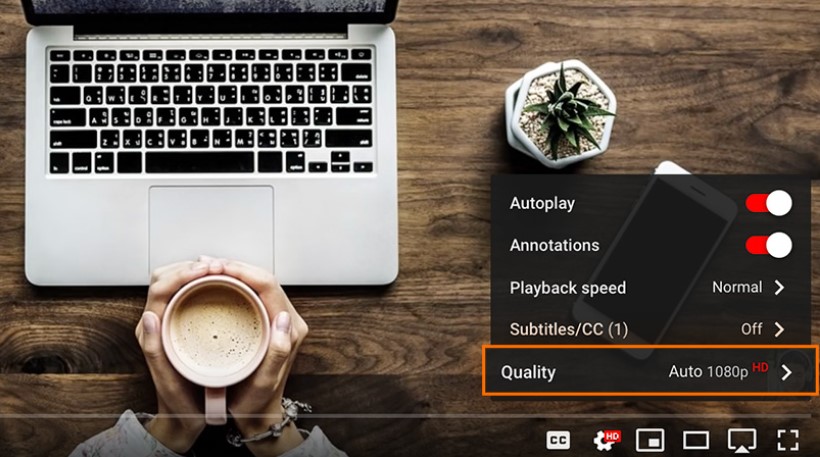
Test the stream at a lower quality for two minutes
This is not a “permanent downgrade.” It’s a test to see if buffering is tied to stream quality. If lowering quality stops buffering right away, your setup is struggling to hold the higher quality consistently.
Once it’s stable, raise quality one step at a time. This is one of the fastest ways to learn what your home setup can really handle without stalling.
Move closer to the router or use a wired connection if possible
If your TV is far from the router or behind thick walls, Wi-Fi can look “fine” yet still be unstable. Moving closer for a quick test tells you if signal strength is the real cause.
For living-room TVs, Ethernet is still the most stable option. If you can run a cable, it often ends the “random buffering” cycle completely.
WiFi buffering fix that actually lasts
If buffering keeps coming back, treat your Wi-Fi as the most likely source. Streaming needs steady delivery. Weak signal, interference, and crowded wireless channels create short drops that video players hate.
A proper WiFi buffering fix is about making the signal more stable in the room where you watch.
Use the right Wi-Fi band for streaming rooms
If your router offers 2.4 GHz and 5 GHz, the 5 GHz band is usually better for streaming in the same room or nearby rooms because it’s faster and often less crowded. The 2.4 GHz band can travel farther through walls, yet it’s more likely to pick up interference from other devices.
If your TV or Firestick keeps buffering in one spot, switching the device to the other band is a quick test that often helps.
Router placement matters more than people expect
Routers tucked behind a TV, inside a cabinet, or on the floor often cause buffering when streaming. Put the router higher up and more open if possible. Keep it away from big metal objects and thick walls.
If your home is large, a mesh system or an extra access point can help, because the real issue is often distance and obstacles, not the internet plan itself.
Cut the hidden load during game time
Streaming competes with everything else in your home: phones, laptops, downloads, cloud backups, game updates, cameras, and smart devices. When several things pull data at once, your stream gets less priority.
Try pausing big downloads during live matches, and avoid running multiple 4K streams at the same time unless your setup is built for it.
DNS and router updates can remove weird buffering patterns
Some buffering is caused by how your device finds and reaches streaming servers. Changing DNS to a reliable provider can help, especially on smart TVs that struggle with default settings.
Router software updates also matter. Old router software can cause connection drops, especially with newer devices.
How to stop buffering on smart TV (including Samsung)
Smart TVs are convenient, yet they can get sluggish over time. They store app cache, fill up storage, and run multiple services in the background. That’s why “my TV buffers but my phone doesn’t” is so common.
If you’re focused on how to stop buffering on smart tv, start with the TV’s own health and network settings, not just the streaming app.
I have high-speed internet but slow buffering on TV Samsung
Samsung TVs often show this exact problem: speed tests look strong, but the stream still stalls. The usual causes are weak Wi-Fi in the TV’s location, old cache in the streaming app, a slow TV memory state, or DNS settings that don’t play nicely with certain services.
A clean fix is to power cycle the TV properly (unplug it for about a minute), clear cache for the streaming app, then retest at a lower stream quality for two minutes.
Clear app cache and reset the app without wiping everything
Many TV apps build up cache and stored data. Clearing that cache can remove lag and buffering loops. If your TV offers “clear cache” or “clear data” for the streaming app, use it, then sign back in if needed.
If the TV doesn’t let you manage cache per app, reinstall the streaming app. It’s slower, yet it often fixes stubborn buffering on smart TV.
Check the TV’s network connection and try a wired test
Run the TV’s network test if it has one. If it shows weak signal, you have a clear direction: move the router, add a mesh node, or switch to Ethernet.
Even a temporary Ethernet test helps. If the buffering stops on a wired connection, the issue is Wi-Fi stability, not the streaming service.
Match stream quality to your TV’s real-world setup
Smart TVs can default to very high quality. If your Wi-Fi is not steady in that room, the TV will keep stalling while it tries to hold that quality.
Locking the app to a stable quality often beats auto mode on certain TV models, especially if your Wi-Fi signal is borderline.
How to stop buffering on Firestick when streaming
Firestick buffering is usually a mix of Wi-Fi signal, device storage, and app cache. Firesticks are small devices doing a lot, so when they get cluttered, streams suffer.
If your goal is how to stop buffering on firestick, treat it like a device that needs occasional cleanup.
Start with Wi-Fi and placement
If your Firestick is behind the TV and the TV is close to the wall, the signal can be weaker than you think. A small HDMI extender (often included) can move the stick into a better position for Wi-Fi reception.
Also confirm the Firestick is connected to the correct Wi-Fi band (2.4 GHz vs 5 GHz) and test both if buffering persists.
Clear cache on the apps you actually use
If you want how to stop buffering when streaming on Firestick, clear cache for your main streaming apps first. Cache can become bloated and cause slow loading and stalls.
If one app buffers and others don’t, that points to app-level cache or app-level settings, not your whole network.
Free up storage and restart
Low storage can cause buffering on Firestick because the device struggles to keep temporary data moving. Uninstall apps you don’t use, clear app cache, then restart the Firestick.
This is one of the most reliable Firestick fixes because it improves device responsiveness, not just the connection.
Update the device and the streaming apps
Outdated app versions can cause playback bugs. Update the Firestick system and the apps, then test again. If buffering began after a recent update, a clean reinstall of the problem app can help.
How to stop buffering on Android
Android buffering can come from Wi-Fi, mobile data limits, battery-saving settings, or background apps eating resources. Phones and tablets also switch networks quietly, which can interrupt streams.
If you’re searching how to stop buffering on Android, keep the first test simple: lock the device to one stable connection and reduce background load.
Stabilize the connection before changing anything else
Try streaming on Wi-Fi only, then test on mobile data only. If one works cleanly and the other buffers, you’ve found the source.
If Wi-Fi buffers on Android but works on other devices, the phone may be clinging to a weak signal or switching access points.
Turn off battery saver for the streaming app
Battery saver modes can limit background activity and throttle app behavior. That can cause stutters and loading pauses. Set the streaming app to unrestricted battery use during playback if your phone supports that option.
Clear app cache and close heavy background apps
Clear cache for the streaming app, then close heavy background apps. Some phones keep many apps running, and video playback can suffer when the device is juggling too much at once.
If the buffering is only on YouTube, clearing YouTube cache and restarting the phone is a solid first move.
Lower quality briefly, then step up
Just like on TV, a two-minute test at a lower quality tells you a lot. If it stops buffering, raise quality slowly until you find the stable ceiling for that connection.
When buffering is not your fault
Sometimes you do everything right and the stream still buffers. That usually means the service is overloaded, the match is drawing massive traffic, or your provider’s route to that service is stressed at that time.
This is also why buffering can appear only during big games, then vanish the next day.
Peak hours and busy events
Streams can buffer more during prime time and major live events. If your stream only buffers during huge matches, the service load may be part of it.
A practical test is to try a replay or a different live channel. If only one event buffers, that points away from your home setup.
Provider-side slowdowns
Some providers slow certain types of traffic during busy periods. It’s not always obvious, and it doesn’t always show up in a speed test.
If buffering happens at the same time every night, and your Wi-Fi setup is solid, this may be a provider-side pattern.
Bad app behavior after updates
If buffering started right after an app update, reinstalling the app can help. Apps sometimes ship playback bugs that show up only on certain devices.
Conclusion
If you want how to stop buffering, start with the quick reset path, then focus on Wi-Fi stability and device cleanup. Firestick issues usually improve after clearing cache and freeing storage. Smart TV buffering often improves after a proper power cycle, app cleanup, and a wired test. Android buffering often improves by stabilizing the connection, adjusting battery settings, and clearing cache.
Once your setup is steady, you’ll spend less time troubleshooting and more time actually watching.